ReliaSim’s interface is organized around three primary navigation areas: the left navigation bar, the right navigation bar, and the top navigation bar. Together, these panels support the full modeling workflow—allowing you to build structure, configure experiments, visualize behavior, and review results without leaving the main workspace.
You can move freely between these areas at any time. Changes made in one panel are reflected immediately across the model, making it easy to iterate on structure, adjust assumptions, and explore outcomes as your understanding evolves.
Left Navigation Bar
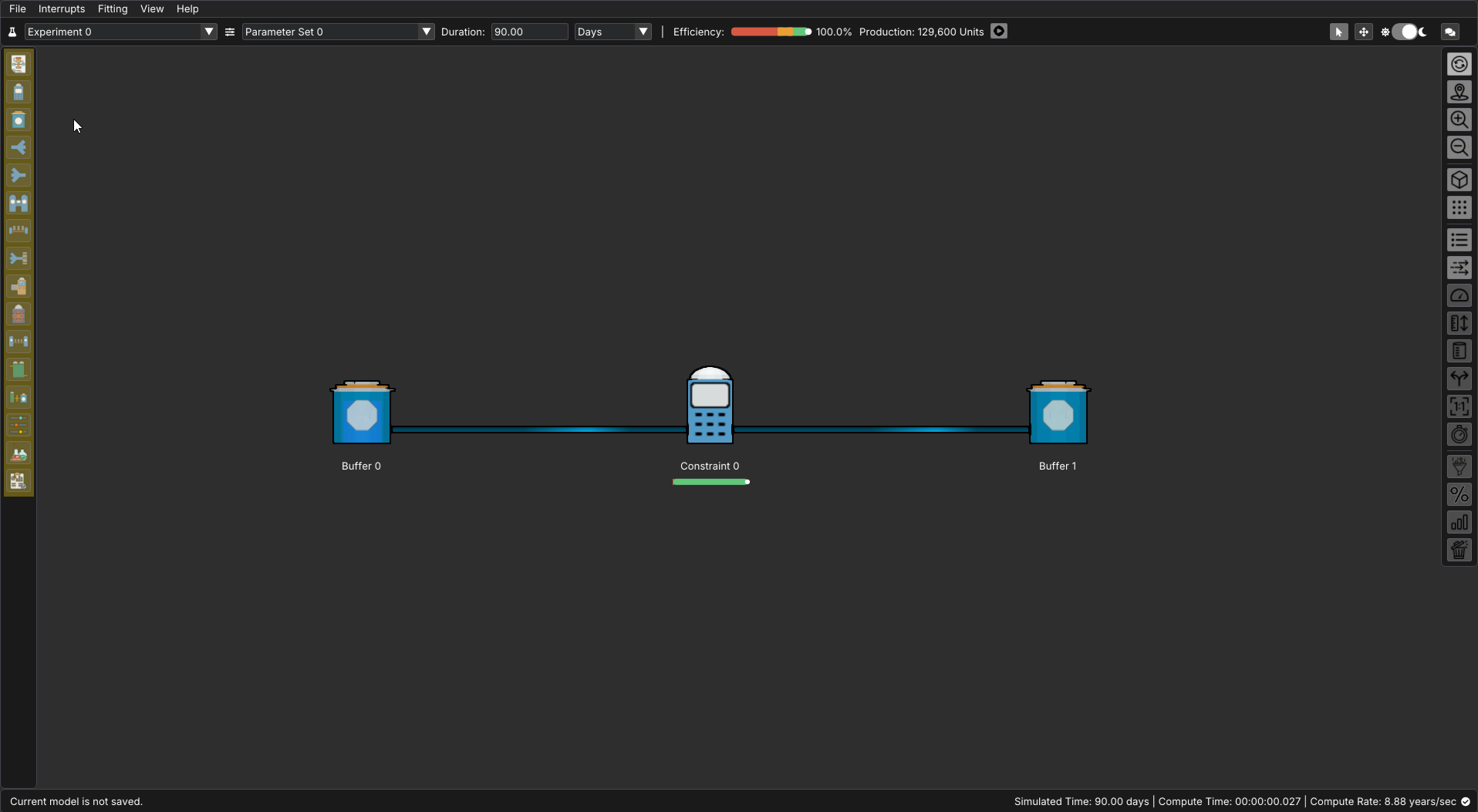
The left navigation bar is where you configure and edit the structure of your model, along with its supporting settings. Each icon opens an editor focused on a specific part of the workflow, including node configuration, parameter sets, experiments, and analysis.
Use this panel to:
- Define and modify node properties
- Adjust settings for different node types
- Configure parameter sets and experiments
- Review compiled analysis results
Switching between these editors allows you to refine your model incrementally—moving from structure, to configuration, to results as needed.
Within most editors, additional icons are available to change how information is displayed. These allow you to view nodes in table form, edit properties individually, import or export settings, and access contextual information about each node type.
Right Navigation Bar
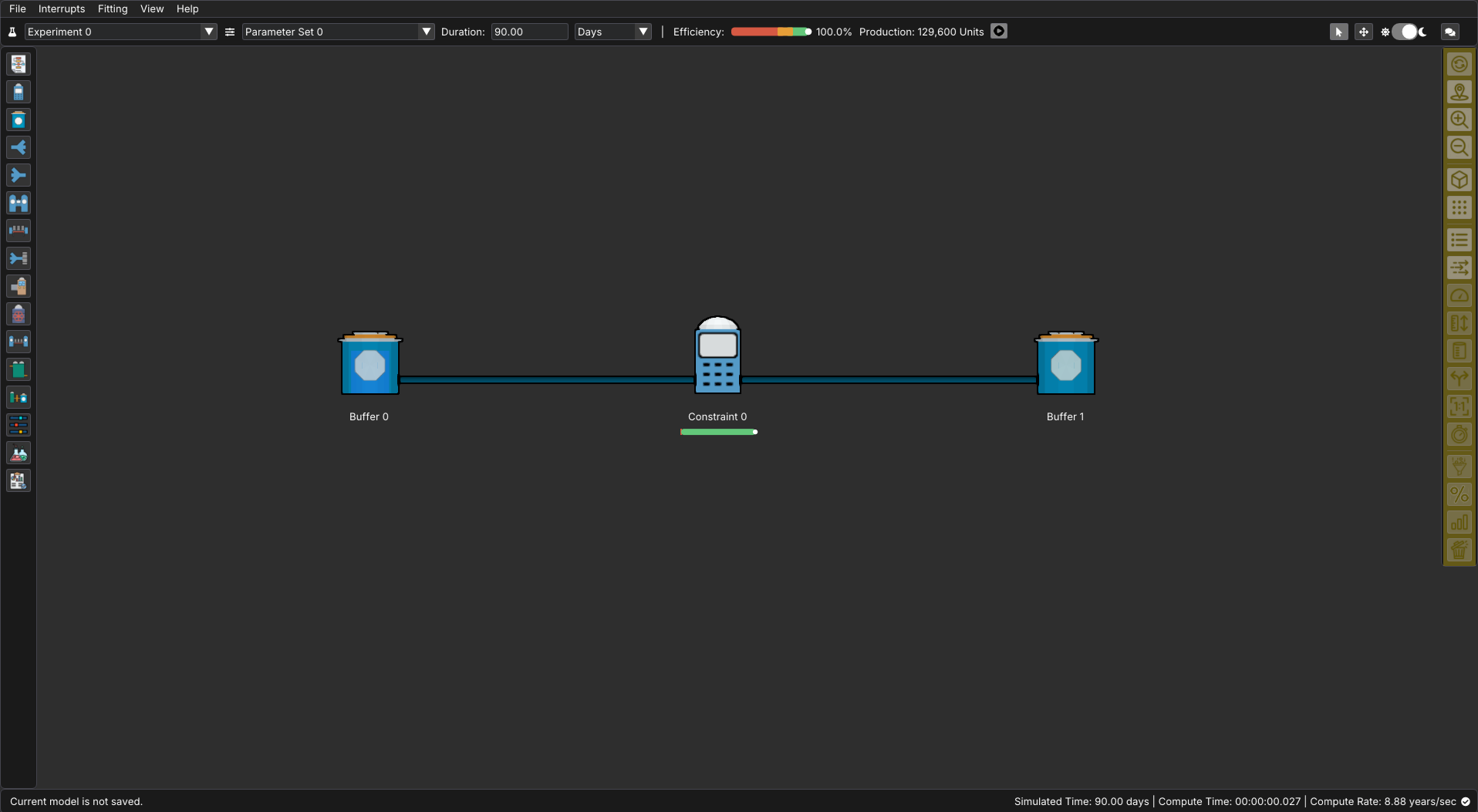
The right navigation bar controls how your model is displayed and what information appears directly on the flowchart.
Use this panel to:
- Adjust zoom and view mode (2D or 3D)
- Toggle grid visibility and node labels
- Enable flow direction animations
- Show or hide performance indicators such as throughput, availability, capacities, volumes, and interrupts
These controls allow you to tailor the visual presentation of your model depending on what you are investigating—whether you are aligning layout, inspecting flow behavior, or reviewing performance metrics.
Top Navigation Bar
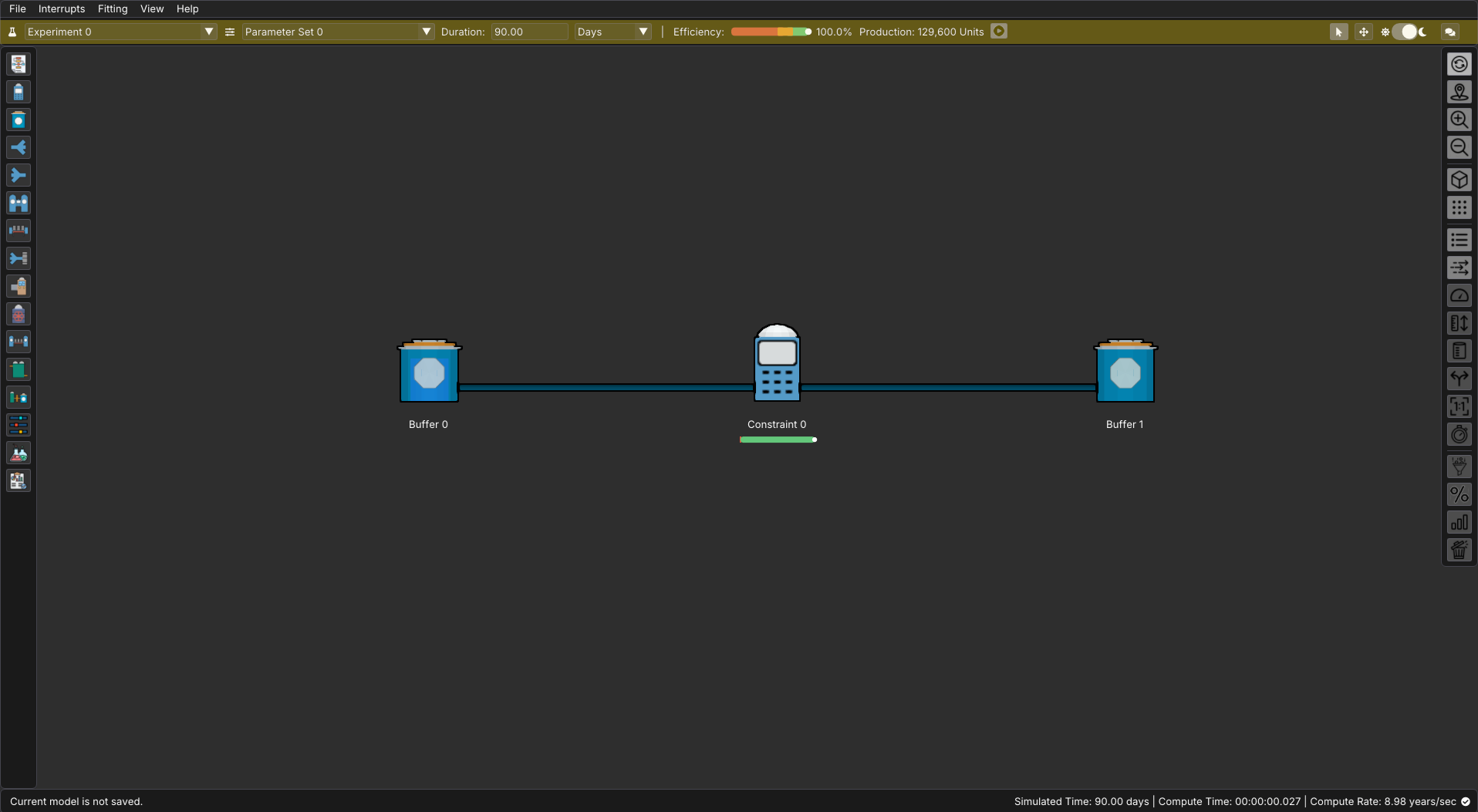
The top navigation bar provides high-level controls and feedback for your current model and experiment.
From here you can:
- Select parameter sets and experiments
- Adjust experiment duration
- View overall efficiency and production throughput
- Enter Replay mode to step through simulation results
- Switch between cursor and move modes
- Toggle between light and dark themes
- Add model-level comments
This bar serves as the central hub for running simulations and reviewing system-wide performance.
Node Interaction
In addition to the navigation bars, individual nodes can be configured directly from the flowchart.
Clicking on any node opens its context menu, where you can:
- Edit the node’s name or description
- Add comments specific to that node
- Switch the node to a compatible type (when available)
This provides a fast, visual way to adjust properties while keeping your focus on the overall model layout.
ReliaSim’s navigation is designed to support continuous iteration: you can move between structure, visualization, and analysis at any point in the process. As you build and refine your model, these navigation tools allow you to explore behavior, test assumptions, and adjust configurations without interrupting your workflow.
For more detailed references on all of these sections, check out the Quick Start Guide